CSS Tutorials
![Case Insensitive CSS Attribute Selector]()
Case Insensitive CSS Attribute Selector
CSS selectors never cease to amaze me in how powerful they can be in matching complex patterns. Most of that flexibility is in parent/child/sibling relationships, very seldomly in value matching. Consider my surprise when I learned that CSS allows matching attribute values regardless off...
![HTML popover Attribute]()
HTML popover Attribute
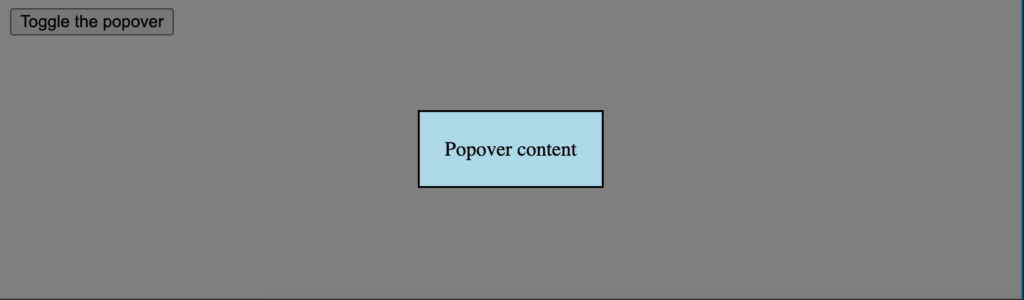
Modals have been an important part of websites for two decades. Stacking contents and using
fetchto accomplish tasks are a great way to improve UX on both desktop and mobile. Unfortunately most developers don't know that the HTML and JavaScript specs have implemented...

![How to Override width and height HTML attributes with CSS]()
How to Override width and height HTML attributes with CSS
One of the HTML elements that frequently comes into collision with CSS is the
imgelement. As we learned in Request Metrics' Fixing Cumulative Layout Shift Problems on DavidWalshBlog article, providing image dimensions within theimagetag will help to improve your website's score. But...![AutoGrow Textareas with CSS]()
AutoGrow Textareas with CSS
As the demands of the web change and developers experiment with different user experiences, the need for more native language improvements expands. Our presentation layer, CSS, has done incredibly well in improving capabilities, even if sometimes too slow. The need for native support for automatically expanding...
![CSS content-visibility]()
CSS content-visibility
The CSS language is full of small gaps which are frustrating to navigate. Between CSS properties to hide a container and its contents, there is still room for improvement.
visibility: hiddenkeeps height and width integrity whiledisplay: noneon a container hides everything. You can...-
![CSS ::file-selector-button]()
CSS ::file-selector-button
We all love beautifully styled
formcontrols but, due to the differences between operating system displays, styling them can be painful. Due to that pain, we've created scores of libraries to mock these controls. Unfortunately that sometimes comes at the cost of accessibility, performance...![How to Control CSS Animations with JavaScript]()
How to Control CSS Animations with JavaScript
When it comes to animations on the web, developers need to measure the animation's requirements with the right technology -- CSS or JavaScript. Many animations are manageable with CSS but JavaScript will always provide more control. With
document.getAnimations, however, you can use JavaScript to manage...![Detecting Fonts Ready]()
Detecting Fonts Ready
Knowing when resources are loaded is a key part of building functional, elegant websites. We're used to using the
DOMContentLoadedevent (commonly referred to as "domready") but did you know there's an event that tells you when all fonts have loaded? Let's learn how...
![Detect System Theme Preference Change Using JavaScript]()
Detect System Theme Preference Change Using JavaScript
JavaScript and CSS allow users to detect the user theme preference with CSS'
prefers-color-schememedia query. It's standard these days to use that preference to show the dark or light theme on a given website. But what if the user changes their preference...![CSS :autofill]()
CSS :autofill
Autofilling HTML
inputelements is a frequent user action that can drastically improve user experience. Hell, we all autofill for our passwords and address information. But what control do we have wheninputelements have been autofilled?To add custom CSS styles to inputs whose...